様々な LoRAを作成することのできるAI-Toolkit
AI-Toolkit
GitHub – ostris/ai-toolkit: The ultimate training toolkit for finetuning diffusion models
Windows の場合は
AI-Toolkit-Easy-Install.batインストールします
Start-AI-Toolkit.bat起動します
モデルのダウンロード先を変更するには次のコマンドをStart-AI-Toolkit.bat追加してください
set HF_HOME=E:\my_cache\hf_home
set MODELSCOPE_CACHE=E:\my_cache\MODELSCOPE
set TRANSFORMERS_CACHE=E:\my_cache\transformers
set DIFFUSERS_CACHE=E:\my_cache\diffusers
echo HF_HOME = %HF_HOME%
echo TRANSFORMERS_CACHE = %TRANSFORMERS_CACHE%
echo DIFFUSERS_CACHE = %DIFFUSERS_CACHE%
Setting
huggingface 必要であればアカウントのアイコンからAccess Tokensを開き設定します
Datasets
New Datasetをクリック。フォルダー名を聞かれるので入力しそこに画像をアップロードします
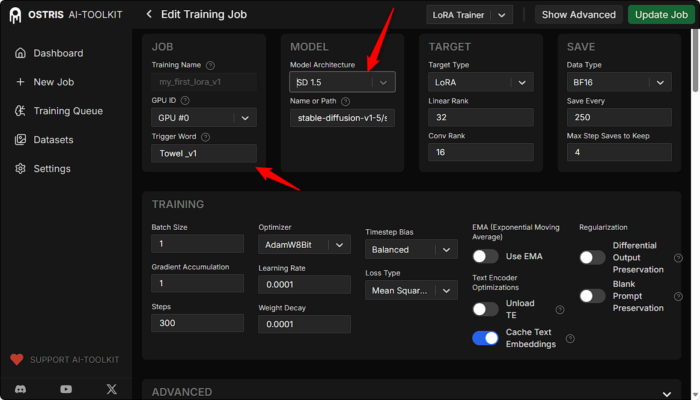
New job
Model Architecture FLUX、SDXL、Qwen Image、Wan、z-image-など。ローカルのファイルパスも指定できます
Trigger words
300steps
create jobをクリック
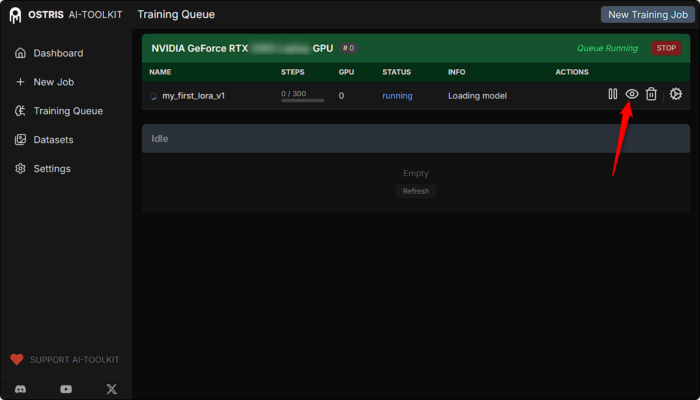
▷をクリック
実行中
作成が完了すると右下にダウンロードできるようになります
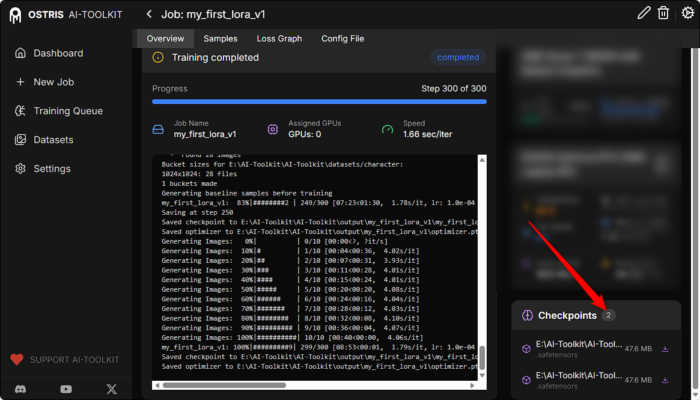
“E:\AI-Toolkit\AI-Toolkit\output\my_first_lora_v1\my_first_lora_v1.safetensors"
ポートの解放
Close server with Ctrl+C twice, not the X button
@echo off&&cd /d %~dp0
Title AI-Toolkit-Easy-Install v0.3.30 by ivo
setlocal enabledelayedexpansion
set PYTHONPATH=
set PYTHONHOME=
set PYTHON=
set PYTHONSTARTUP=
set PYTHONUSERBASE=
set PIP_CONFIG_FILE=
set PIP_REQUIRE_VIRTUALENV=
set VIRTUAL_ENV=
set CONDA_PREFIX=
set CONDA_DEFAULT_ENV=
set PYENV_ROOT=
set PYENV_VERSION=
set HF_HOME=E:\my_cache\hf_home
set MODELSCOPE_CACHE=E:\my_cache\MODELSCOPE
set TRANSFORMERS_CACHE=E:\my_cache\transformers
set DIFFUSERS_CACHE=E:\my_cache\diffusers
echo HF_HOME = %HF_HOME%
echo TRANSFORMERS_CACHE = %TRANSFORMERS_CACHE%
echo DIFFUSERS_CACHE = %DIFFUSERS_CACHE%
echo Cleaning up any stuck processes...
REM Set ports
set UI_PORT=8675
set WORKER_PORT=8675
REM Function to kill processes on a specific port
call :KillPort %UI_PORT%
call :KillPort %WORKER_PORT%
REM Wait for ports to be fully released
timeout /t 3 >nul
echo.
set GIT_LFS_SKIP_SMUDGE=1
set "local_serv=http://localhost:8675"
echo.
cd ./ai-toolkit
echo [92m:::::::::::: Starting AI-Toolkit ... ::::::::::::::[0m
echo.
git.exe fetch
git.exe status -uno | findstr /C:"Your branch is behind" >nul
if !errorlevel!==0 (
echo [93m:::::::::::: [91mNew updates[93m are available ::::::::::::::[0m
echo [92m:::::::::::: Run Update-AI-Toolkit.bat ::::::::::::::[0m
echo.
)
echo [1;93mTips for beginners:[0m
echo.
echo [1;93mGeneral:[0m
echo [1;32m1.[0m Set your [1;92mHugging Face Token[0m in Settings
echo [1;32m2.[0m Close server with [1;92mCtrl+C twice[0m, not the [1;91mX[0m button
echo [1;32m3.[0m To activate the [1;92mvirtual environment[0m (if needed):
echo - Open [1;92mCMD[0m where [1;92mStart-AI-Toolkit.bat[0m is located
echo and Run [1;92mAI-Toolkit\venv\Scripts\activate.bat[0m
echo [1;93mOR[0m just start [1;92mvenv-AI-Toolkit.bat[0m
echo.
echo [92m:::::::: [93mWaiting for the server to start...[92m :::::::::[0m
cd ./ui
if exist .\node_modules\.prisma\client\query_engine-windows.dll.node (
copy /Y .\node_modules\.prisma\client\query_engine-windows.dll.node .\node_modules\.prisma\client\query_engine-windows.dll.node.k
del/q .\node_modules\.prisma\client\query_engine-windows.dll.node
if exist .\node_modules\.prisma\client\query_engine-windows.dll.node (
for /f "tokens=2" %%p in ('tasklist ^| findstr /i "node.exe"') do (
echo - Found stuck Node.js process %%p, terminating...
taskkill /PID %%p /F >nul 2>&1
)
)
)
start cmd.exe /k npm run build_and_start
:loop
if exist "%windir%\System32\WindowsPowerShell\v1.0" set "PATH=%PATH%;%windir%\System32\WindowsPowerShell\v1.0"
powershell -Command "try { $response = Invoke-WebRequest -Uri '!local_serv!' -TimeoutSec 2 -UseBasicParsing; exit 0 } catch { exit 1 }" >nul 2>&1
if !errorlevel! neq 0 (timeout /t 2 /nobreak >nul&&goto :loop)
start !local_serv!
REM Cleanup after processes end
echo.
echo Processes ended. Cleaning up...
call :KillPort %UI_PORT%
call :KillPort %WORKER_PORT%
pause
goto :eof
REM ============================================
REM Subroutine to kill processes on a port
REM ============================================
:KillPort
set TARGET_PORT=%1
echo Checking port %TARGET_PORT%...
REM Find and kill any process listening on the port (both IPv4 and IPv6)
for /f "tokens=5" %%p in ('netstat -ano ^| findstr ":%TARGET_PORT% " ^| findstr LISTENING') do (
echo - Killing process %%p on port %TARGET_PORT%
taskkill /PID %%p /F >nul 2>&1
if not errorlevel 1 (
echo - Process %%p terminated successfully
)
)
REM Also check for Node.js processes that might be stuck
for /f "tokens=2" %%p in ('tasklist ^| findstr /i "node.exe"') do (
netstat -ano | findstr "%%p" | findstr ":%TARGET_PORT% " | findstr LISTENING >nul
if not errorlevel 1 (
echo - Found stuck Node.js process %%p, terminating...
taskkill /PID %%p /F >nul 2>&1
)
)
goto :eof
REM Cleanup after processes end
echo.
echo Processes ended. Cleaning up...
call :KillPort %UI_PORT%
call :KillPort %WORKER_PORT%
pause
goto :eofもしもthe X buttonで終了してしまった場合リネームできないエラーが出ます
tasklist | findstr /i “node.exe" これでPID を調べて次のコマンドで終了させます
taskkill /PID 29828 /F または
taskkill /f /im node.exe
した後に もしくは再起動した後に
del/q “E:\AI-Toolkit\AI-Toolkit\ui\node_modules.prisma\client\query_engine-windows.dll.node"